Mod Manager
Manage your mods list directly from the launcher.
Aurora Mod Manager#
Aurora has its own advanced mod manager directly inside of the launcher. It supports a lot of features and styles, so we recommend going through each one to see what fits you the best.
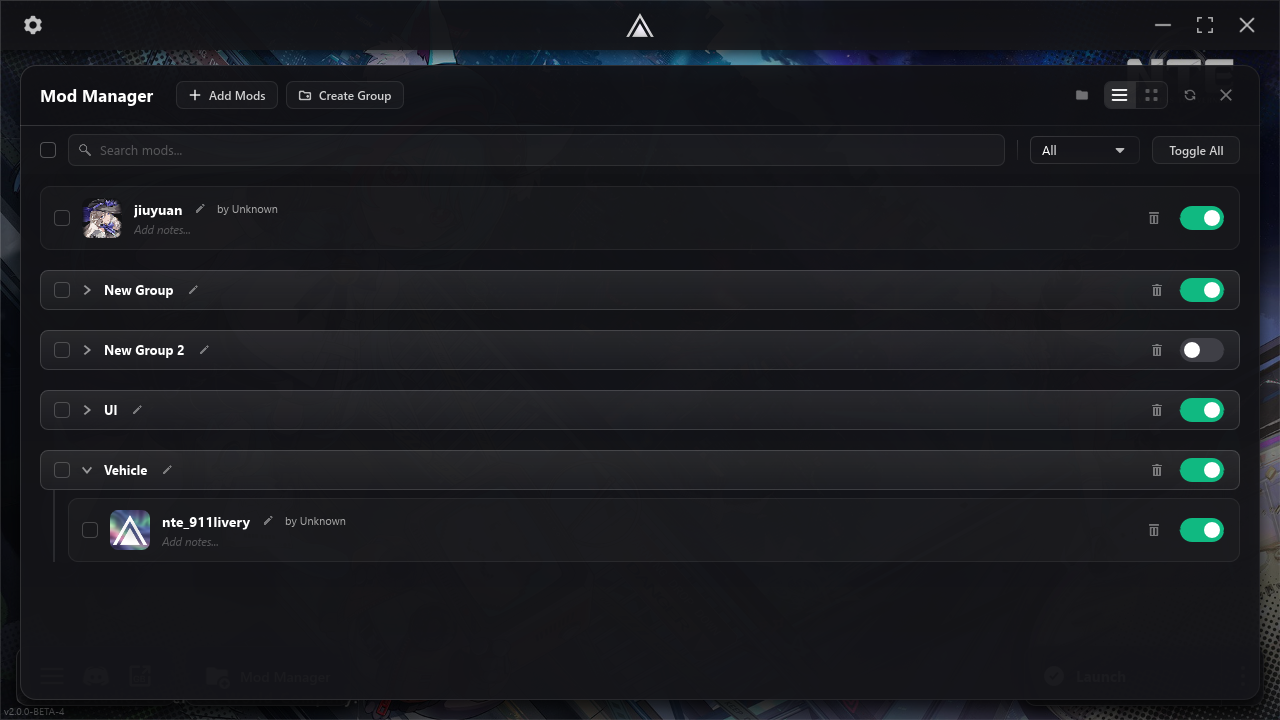
List View#
The default way to view the mod manager.
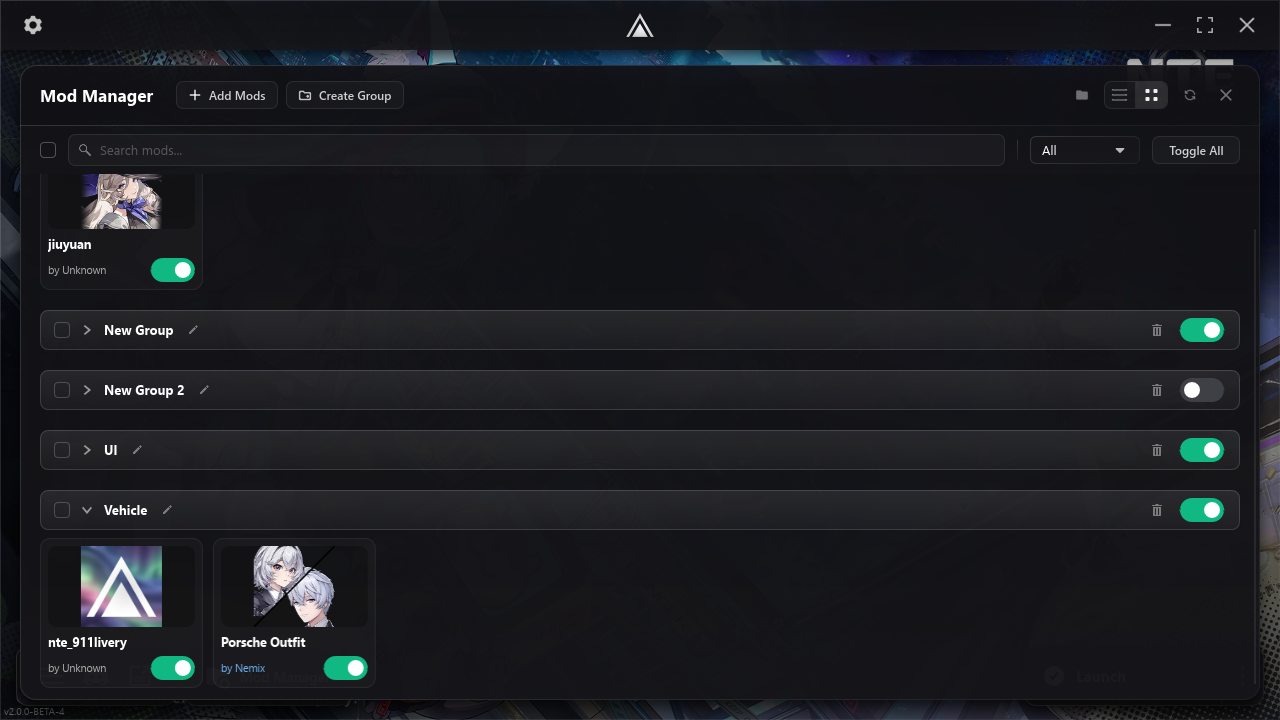
Grid View#
An alternate less compact way of viewing the mod manager.
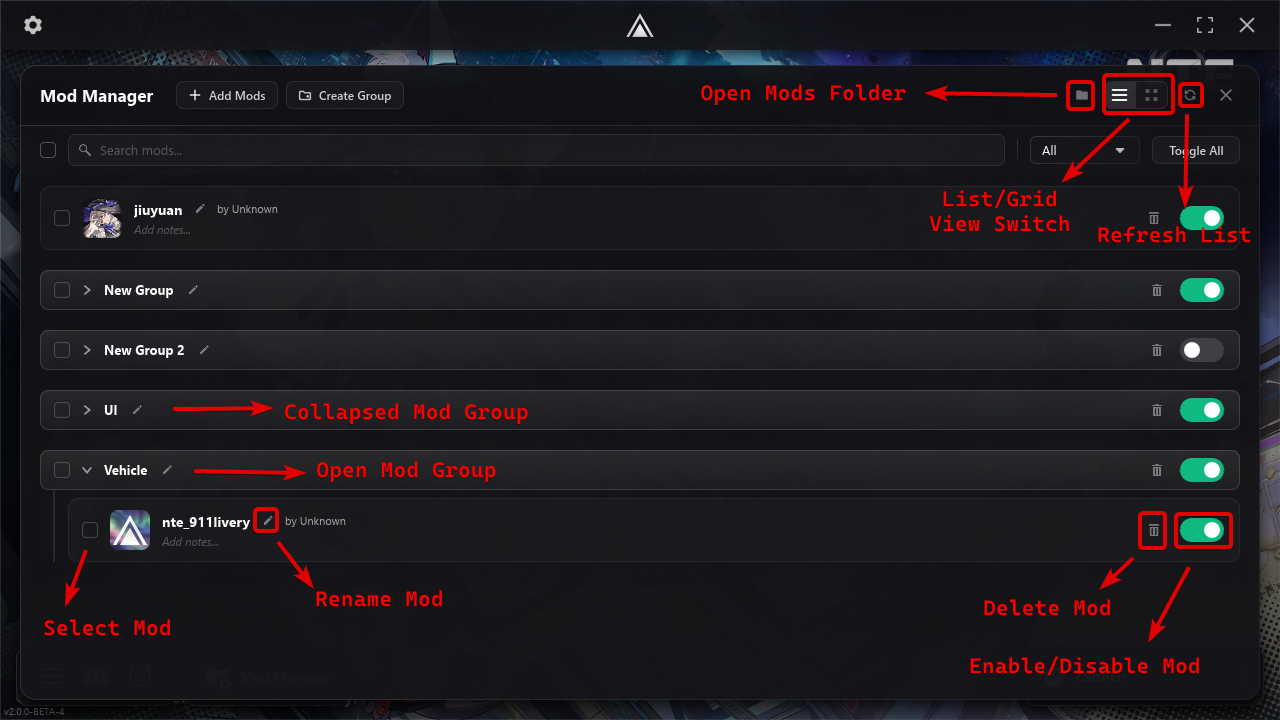
Features List#
In-depth explanation of each feature Aurora's mod manager has.
Installing Mods#
You have 3 ways of installing mods with Aurora directly in the launcher:
- Install from Archive — Install mods from archive files like .ZIP, .RAR, .7Z, etc.
- Install from Folder — Install mods in a folder that were already extracted.
- Install from GameBanana Installer — Install mods from our Game Banana browser.
Creating a Group#
You can create a group to house your mods in for a better management experience and to create less clutter.
Switching Views#
Aurora supports 2 types of views:
- List
- Grid
List is the default one. You can always switch between the two in the top bar.
Bulk Mod Selections#
Select all mods, do bulk actions on them like toggling them or deleting them.
Search Local Mods#
Search your installed mods
Filter#
Filter your installed mods from the following options:
- All mods, enabled mods and disabled mods
- By Group
- By Character
- By Author
Toggle All#
Toggle all of your mods with a single click
Mods Features#
These depend heavily on what the mod author has put on their mod folder. Aurora uses a "mod.json" file to display mod's details properly in the mod manager. For more information check out Displaying your Mod.
ᅠ

Renaming#
Renaming the mod's name can be done by pressing the pen icon next to the mod name.
Deleting#
The trash bin icon allows you to delete the mod with a popup showing before you do actually delete it.
Toggling#
The big switch allows you to toggle the mod freely.
Version Tracking#
If the mod was downloaded off our GameBanana browser menu (available in the "Install Mods" button), the installed mod will be associated with the mod page's details. This allows you to update outdated mods with a single click when their GameBanana page is updated with a new file version.
Restart Flags#
If a mod is toggled while the game is open, a "Restart Required" pill frame will show up notifying you that the game needs to be restarted in order for the mod to take effect.
Mod.json example#
If the mod author has put a mod.json file inside of the mod, this is how the mod would look like:
ᅠ

Next#
- Aurora Menu allows you to access different tools in Aurora.