Lua Scripting
Load Lua scripts in-game and alter the game's behaviour
First Impression#
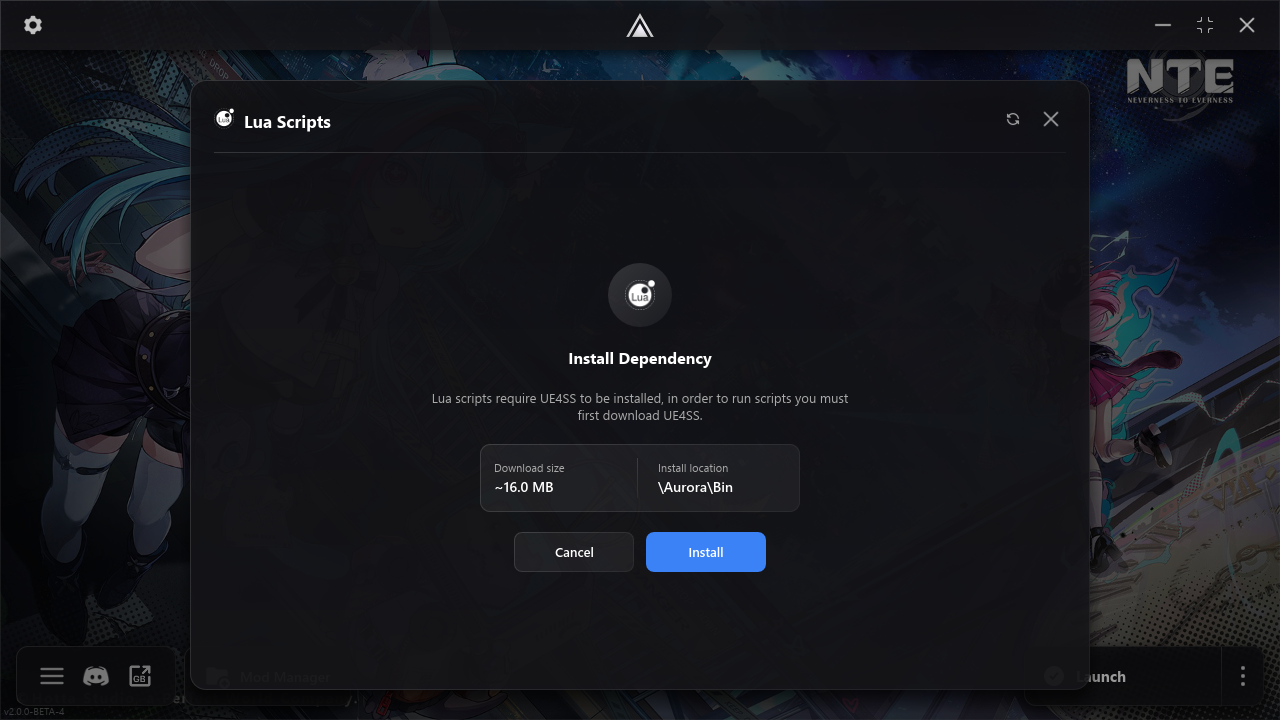
When you first open the page, you will be greeted with the installation screen. Because UE4SS is not a small dependency so to reduce bloat for users who aren't going to be using Lua scripts we locked it behind an installation screen.
ᅠ
After Installing#
After installing UE4SS, you will be greeted with this screen:
ᅠ
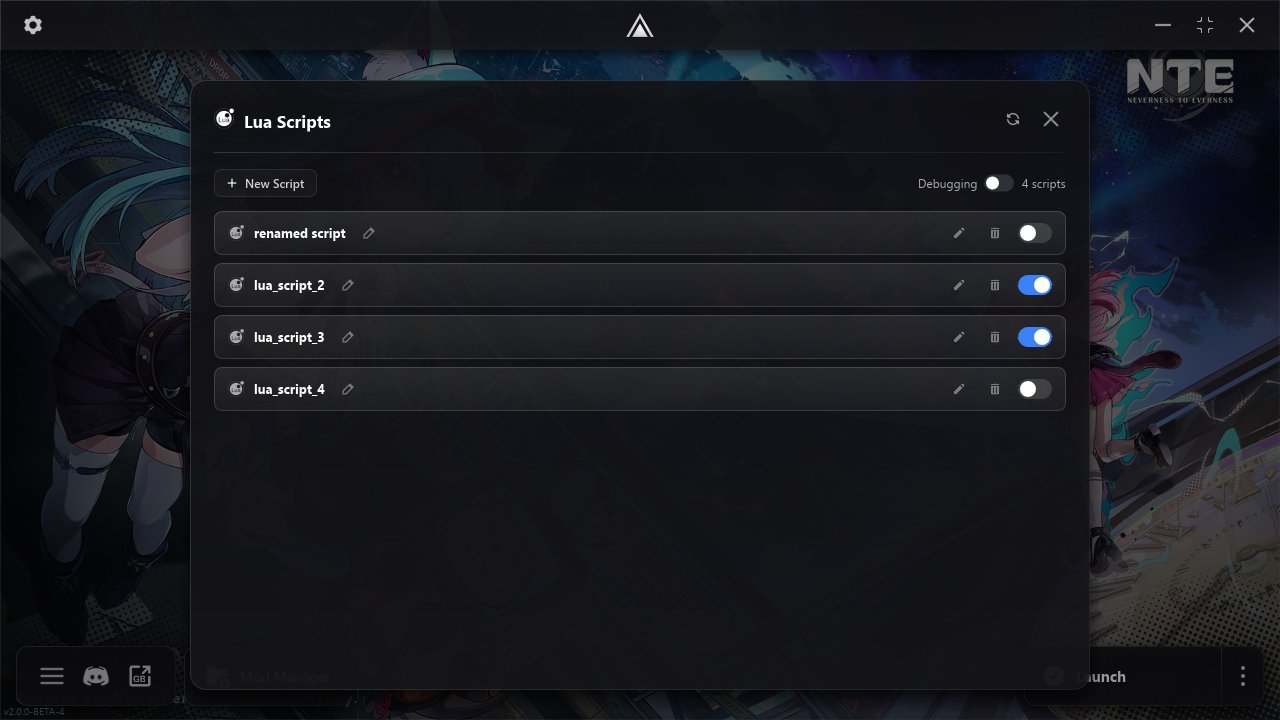
In the example above, I already have some Lua scripts added. But in your case the list will be empty. Press "New Script" to create a new Lua script.
After creating a new script, you have the following actions:
- Rename — Click the pen icon next to the name of the script to rename it.
- Edit — Click the pen icon next to the toggle to edit the script
- Delete — Click the trash bin icon next to the toggle to remove the script
- Toggle — Click the switch button on the right to enable/disable the script.
Editing Scripts#
ᅠ
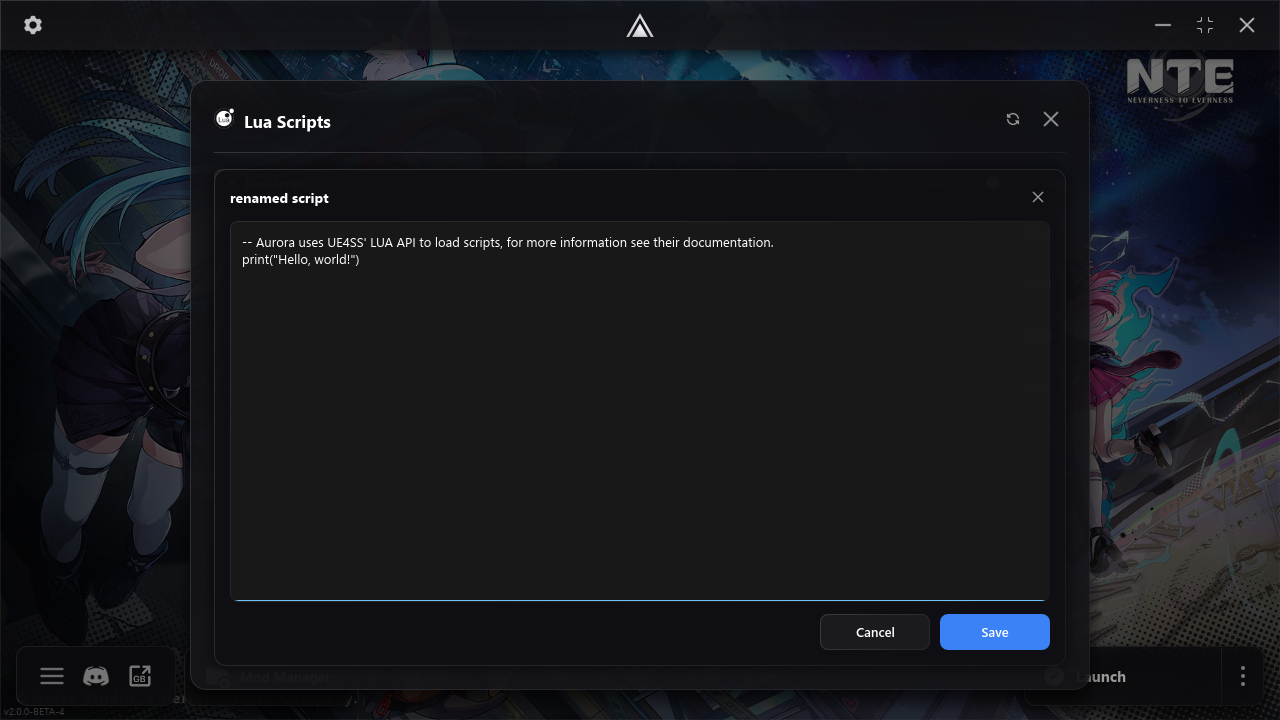
Because Slint doesn't have the feature of Rich Texts currently, there is no syntax highlighting feature available.
Any Lua code you paste in here will be saved and loaded in-game.
Debugging#
If you look closely, you'll see a "Debugging" toggle at the top. Enabling it will edit UE4SS's settings to enable the debugging GUI in-game.